April 4, 2010

Add a Gmail account in Outlook

You can send and receive e-mail messages by using your Google Gmail e-mail account and Outlook. Gmail requires a Secure Sockets Layer (SSL) encrypted connection when you retrieve and send e-mail. Gmail uses POP3 port number 995 and Simple Mail Transfer Protocol (SMTP) port number 465. These settings are not the default for a POP3 account in Outlook and require you to modify account settings in Outlook.

The outgoing e-mail server is similar to those used by many Internet service providers (ISPs). However, Gmail requires authentication on their SMTP e-mail server. This requirement means that you must provide a user name and password — the same as your Gmail screen name and password — before you send your e-mail message. You can save the user name and password in Outlook so that you enter the information just one time.

The following steps configure Outlook for all necessary settings required to send and receive e-mail by using your Gmail e-mail account and Outlook.

 Note   When you change your Gmail password, you need to update the Gmail account information in Outlook.

Do one of the following:

Add your Gmail e-mail account

To use your Gmail e-mail account in Outlook, you must first make sure POP3 support is enabled in Gmail, and then you can add it to Outlook.

  1. Log in to your Gmail account.
  2. At the top of any Gmail page, click Settings.
  3. In the Mail Settings window, click Forwarding and POP.

    I don't see Forwarding and POP

  4. In the POP Download section, select Enable POP or all mail or Enable POP only for mail that arrives from now on.
  5. Click Save Settings.
  6. In Outlook, on the Tools menu, click E-mail Accounts.
  7. Click Add a new e-mail account, and then click Next.
  8. Click POP3, and then click Next.
  9. Under User Information, do the following:
    1. In the Your Name box, type your full name the way you want it to appear to other people.
    2. In the E-mail Address box, type your e-mail user name followed by @gmail.com.
  10. Under Server Information, do the following:
    1. In the Incoming mail server (POP3) box, type pop.gmail.com.
    2. In the Outgoing mail server (SMTP) box, type smtp.Gmail.com.
  11. Under Logon Information, do the following:
    1. In the User Name box, type your full e-mail address, including @gmail.com.
    2. In the Password box, type your password.
    3. Select the Remember password check box.

       Note   You have the option to have Outlook remember your password by typing it in the Password box and selecting the Remember password check box. Having Outlook remember your password means that you won't have to type your password each time you access the account; however, it also means that the account is vulnerable to anyone who has access to your computer.

  12. Click More Settings.
  13. On the General tab, under Mail Account, type Gmail.
  14. Click the Outgoing Server tab, and then select the My outgoing server (SMTP) requires authentication check box.
  15. Select Use same settings as my incoming mail server.
  16. Click the Advanced tab, and then under Server Port Numbers for both Incoming server (POP3) and Outgoing server (SMTP), select the This server requires an encrypted connection (SSL) check boxes.
  17. Change the Outgoing server (SMTP) port number to 465.

    The Incoming server (POP3) port number should change automatically to 995 when you select the This server requires an encrypted connection (SSL) check box.

  18. Click OK.
  19. To verify that your account is working, click Test Account Settings. If there is missing or incorrect information, such as your password, you will be prompted to supply or correct it. Make sure your computer is connected to the Internet.
  20. Click Next, and then click Finish.

  Notes  

  • Do not select the Log on using Secure Password Authentication (SPA) check box.
  • Unless specified by Gmail, all server and address entries are typed in lowercase letters.

Remove your Gmail e-mail account

  1. On the Tools menu, click E-mail Accounts.
  2. Click View or change existing e-mail accounts, and then click Next.
  3. Click the Gmail e-mail account you want to remove, and then click Remove.
  4. Click Finish.

 Note   You can export your Outlook Contacts as a Comma Separated Values (.csv) file and import your contacts into your Gmail account. For help on exporting and importing your Outlook Contacts, see the See Also section in this article.
Permalink • Print • Comment

Use Outlook with Comcast e-mail

Applies to
Microsoft Office Outlook® 2003
Microsoft Outlook® 2002

You can use Outlook with your Comcast e-mail account. The following steps will set up Outlook to both receive and send e-mail messages with your Comcast account.

Note  You can receive your Comcast e-mail messages by using Outlook from most places with an Internet connection. Comcast provides you access to an authenticated SMTP server — allowing you to send e-mail messages using Outlook from your Comcast account when you are using another Internet service, such as at your office or when traveling.

Do one of the following:

Add your Comcast e-mail account

  1. On the Tools menu, click E-mail Accounts.
  2. Select Add a new e-mail account, and then click Next.
  3. Select POP3, and then click Next.
  4. Under User Information, do the following:
    1. In the Your Name box, type your full name the way you want it to appear to other people.
    2. In the E-mail Address box, type your e-mail user name followed by @comcast.net.
  5. Under Server Information, do the following:
    1. In the Incoming mail server (POP3) box, type mail.comcast.net.
    2. In the Outgoing mail server (SMTP) box, type smtp.comcast.net.
  6. Under Logon Information, do the following:
      is generic viagra safe

    1. In the User Name box, type your user name provided by Comcast.
    2. In the Password box, type your password.
    3. Select the Remember password check box.

      Note  You have the option to have Outlook remember your password by typing it in the Password box and selecting the Remember password check box. Having Outlook remember your password means that you won't have to type your password each time you access the account; however, it also means that the account is vulnerable to anyone who has access to your computer. Use strong passwords that combine upper- and lowercase letters, numbers, and symbols. Weak passwords don't mix these elements. Strong password: Y6dh!et5. Weak password: House27. Use a strong password that you can remember so that you don't have to write it down.

  7. To verify that your account is working, click Test Account Settings. If there is missing or incorrect information, such as your password, you will be prompted to supply or correct it. Make sure your computer is connected to the Internet.
  8. Click More Settings.
  9. On the General tab, under Mail Account, type Comcast.

    Note  If you are attempting to send and receive Comcast e-mail messages from a location where you are not directly connected to Comcast, such as at work or when travelling, see the Notes section for additional steps.

  10. Click OK, and then click Next.
  11. Click Finish.

Notes

  • Do not select the Log on using Secure Password Authentication (SPA) check box.
  • Unless specified by Comcast, all server and address entries are typed in lowercase letters.
  • To send and receive e-mail messages with your Comcast account when you are not directly connected to the Comcast service, such as at work or when travelling, you must use the following:
    1. After step 9 above, click the Outgoing Server tab, and then select the My outgoing server (SMTP) requires authentication check box.
    2. Select Use same settings as my incoming mail server.
    3. Continue with step 10 above.

Remove your Comcast e-mail account

  1. On the Tools menu, click E-mail Accounts.
  2. Select View or change existing e-mail accounts, and then click Next.
  3. Click the Comcast e-mail account you want to remove, and then click Remove.
  4. Click Finish.

Permalink • Print • Comment

GMAIL & OUTLOOK

To set up your Outlook 2007 client to work with Gmail:

  1. Open Outlook.
  2. For new setups, select Do not upgrade.
  3. Click Yes.
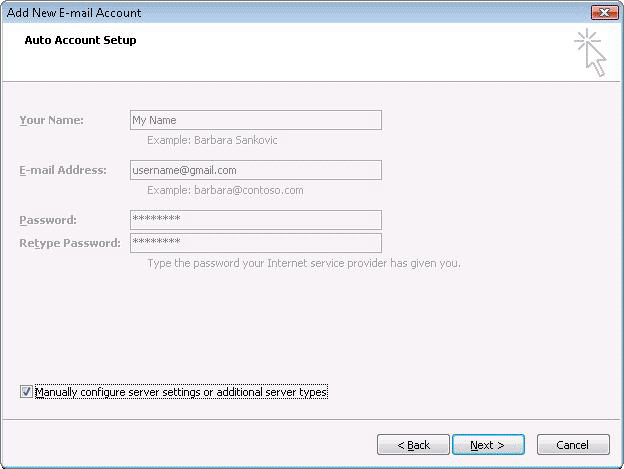
  4. Enter your display name, email address (including '@gmail.com'), and password. Google Apps users, enter your full email address, e.g. 'username@your_domain.com.'
  5. Select the 'Manually configure server settings or additional server types' checkbox.
  6. Select Internet E-mail.
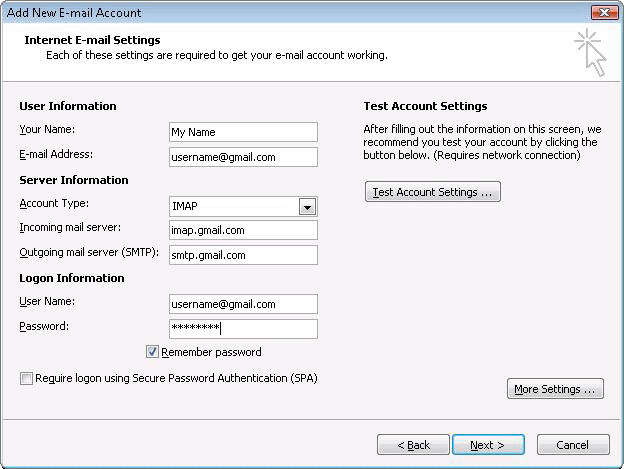
  7. Settings: name, full email address (including '@gmail.com' or '@your_domain.com')
    • In the Account Type dropdown menu, select IMAP; enter the incoming is generic viagra real and outgoing server names shown below.
    • In the 'User Name' field, give your full Gmail address, including '@gmail.com' or '@your_domain.com.'
    • After creating these settings, clicking Next takes you to the end of the setup.

  8. In the Tools menu, select Options then Mail Setup. Under 'Email Accounts,' click E-mail Accounts.
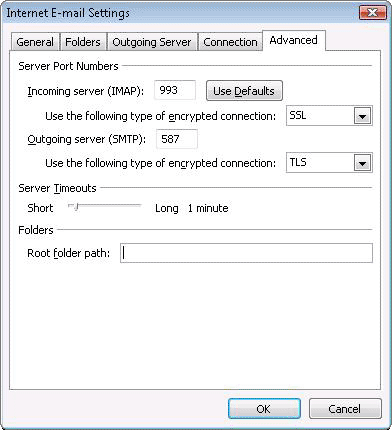
  9. Select an account, and click Change above the list of accounts. Click More Settings, then the Advanced tab.
    • Incoming server must be 993, and must use SSL encryption.
    • Outgoing server can use 587, TLS encryption.
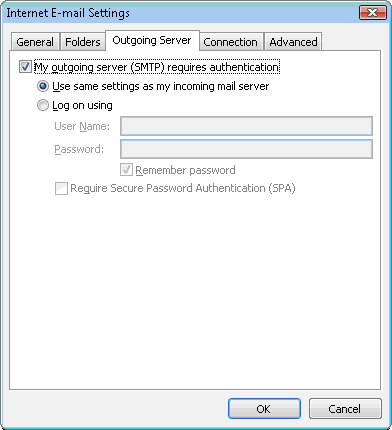
  10. Click the Outgoing Server tab. Make sure that 'My outgoing server (SMTP) requires authentication' is selected. The radio button 'Use same settings as my incoming mail server' should also be selected.
  11. Click OK > Next > Finish > Close > OK.
  12. Check our recommended client settings, and adjust your client's settings as needed.
Permalink • Print • Comment

February 21, 2010

How To Turn A Netbook Into A Full Page eReader

How To Turn A Netbook Into A Full Page eReader

by Staff Writer – February 21, 2010

So, you have a netbook that you find handy for different computing tasks. Well, with a little effort, you may find it easy to use a netbook as a full page eReader. That’s right, full page – not just a section of a graphic novel on the screen at a time. Plus, being able to view material in full color is something that dedicated eReaders cannot do.

Screen Rotation

First, let’s do a little research – pick up a paperback or hardcover book, and look at the width to height ratios. Do you see how it’s taller than it is wide? Okay, now let’s look at your netbook. Well, this is no good, it’s just the opposite – the netbook is wider than it is tall. But we can fix that.

We are going to use an Asus 901 for our example, but you can check any netbook reviews, to find a suitable netbook – they tend to be very similar in their hardware.  Now, in order to get the screen to turn sideways, the easiest thing is to find a driver that will accommodate it. This is the easiest path, and luckily Intel provides a more than capable driver for these chipsets.

As you can see from the driver screen shot, I only have to assign a hot key to rotate the screen when needed. I use <ctrl><alt> + arrow keys so that I can rotate any direction at will, but you can map as you see fit. The important thing is that you want to be able to pull up the reader and then rotate your screen, and get back from it after your reading session is over.

Get The Reader

Okay, we now have the screen rotated, how about the reader? Well, for most graphic novel works, I like the cbr/cbz format, which is basically a zipped or rar archive of the book images. You can find many comics available on the web in this format. But for the reader itself, I suggest you look at the program Comical. From the readers I have tried, this is one of the fastest and most dependable.

Download Comical and install it. Now, you will need something to read, so as a test try downloading Cory Doctorow’s Futuristic Tales of the Here and Now. Download it, and load it into Comical. Go to view/zoom/fit height, and then right click/full screen. With a little luck, you will have the following on your screen:

As you may note, the screen is hard to read, and there is a lot of black dead space on the sides of the comic. But now hit your rotate hot key assigned above, hold the notebook rotated in your hands like you would a paperback,  and you should have the following:

While the Cory Doctorow image above is made smaller to fit on the page here, you can see that it is a full page image, and quite readable. Instead of having to scroll up and down to see the page, you just have to change pages.

Fix the Keys

And this is where the next detail of our task comes into play. Again, netbooks vary, but on the Asus 901 the page down key requires a function + down arrow to work. This is rather awkward when you are trying to read, so we need a better solution.

The answer is in a free program called KeyTweak, which can be found at This program will allow you to remap the keys as needed for a number of uses, which in our case is a simple page down mode.

Download and install KeyTweak, and set up your new key assignment. After you do that, it will be simple to hit a key to go to the next page while reading without having to hit the function key.

Beyond Graphic Novels

Of course, it can be used for more than just Comics. For example, below is a technical PDF shown full page on the netbook:

As you can see, the entire table is on the screen and readable in the actual size full screen view, something that would be impossible with the standard orientation.

So there you have it, a simple way to turn a cheap netbook on its side, using the screen in portrait mode for a full screen display, and even how to map a custom key to make it easy to navigate. Once you try using a turned netbook for full page reading, I think you will find it to be a capable eReader for a wide variety of material.  ingredients in viagra Even laptops would work great as an eReader, and as laptop reviews show, there are many from which to choose.

Permalink • Print • Comment

February 20, 2010

How secure is your password?

How secure is your password?

With most websites requiring you to create an account, do you find yourself in a bit of a pickle when it comes to inventing passwords? Many people use the same password for all their online accounts and often forget the password they came up with months ago. Hands up who doesn’t feel like banging your head against the wall trying to remember the password you created months ago?

Let’s face it – everyone has problems with creating and remembering secure passwords. That’s why we decided to help.

Tips on how to create and remember your passwords:

Use the first letters of a sentence that you will remember,e.g. "I have 3 cats: Fluffy, Furry and Shaggy" gives: Ih3c:FF&S, or “Bouncing tigers have every right to ice-cream” becomes: Bther2I-C.
Take the name of the website and then add your personal twist, like your height or your friend’s home address (e.g. “AmazonOceanRd6’2”). Avoid using your own contact details like your phone number or house number.
info viagra Arial,Helvetica,sans-serif; color: #666666; font-size: 12px”> Remove the vowels from a word or phrase e.g. "I like eating pancakes” becomes: Ilktngpncks”.
Use a phrase from your favourite book and then add the page, paragraph or chapter number.

The Do’s and Don'ts of creating passwords

Do:

Mix letters, numbers and symbols, and use case sensitivity (upper and lower case letters)
The longer the better. Use passwords that are longer than 6 characters.
Change your passwords at least every 60 days, cycling the numeric values up or down makes the new password easy to remember.
Try copying and pasting at least some of the characters in your password that way keyloggers won’t be able to track your keystrokes.

Don't:

Don’t use words or phrases or numbers that have personal significance. It is very easy for someone to guess or identify your personal details like date of birth.
Avoid writing your password down, use a reputable password manager to manage all your passwords.
Don’t use the same password for several logins, especially if they involve sensitive financial or other personal information.
Don’t tell anybody your password.
When registering on websites that ask for your email address, never use the same password as  your email account.
Permalink • Print • Comment
« Previous PageNext Page »
Made with WordPress and a search engine optimized WordPress theme • Sky Gold skin by Denis de Bernardy