December 25, 2007

Calling On Other Worksheets

I'm sure you've all used cell references in your MS Excel formulas, right? You know, let's say you want to add cells A2 and A3 and write a formula to do this in another location. Maybe even something as simple as =A2 + A3.

These formulas are great and pretty easy to use, but let's say there's a piece of data from one worksheet that you need to bring to another. What do you do then?

If cialis trial pack there's a chance the number from the other worksheet could change, you don't want to simply copy the number into the new worksheet. A move like that would only cause you grief. Every time you make a change that altered the value, you'd have to remember to retype the new number on the second worksheet as well.

Forget it! That method isn't worth the trouble.

Let's face it, if you can't set your workbook up to run smoothly and keep updates you have to make to a minimum, you're just looking for some trouble. You'll inevitably overlook one of those repetitive updates and the data will be meaningless.

So, now what?

The solution I suggest is to use the cell locations from the other worksheets in the formula, just like you would if the cells were located all on the same sheet.

Okay, so it isn't exactly the same. There is a slight difference in the way you reference the cells, but once you understand the new references, it's smooth sailing from there.

Now that we know why we want to use references for cells from different worksheets, let's get busy with the how to!

We all know about the basic formula to add two cells from within the same worksheet where the formula will be used. Let's use the one from above as our example: =A2 + A3

Now, let's just say that instead of A2 and A3 from the current worksheet, you want to use A2 from Sheet2 and A3 from Sheet3 in the workbook.

The new formula (with the different sheet references) would look like this: =Sheet2!A2+Sheet3!A3

Your formula has to somehow tell Excel where to find the cells in the workbook and do it before the cell location with the sheet name and the exclamation point. (Without the extra clarification, the program simply uses the sheet with the formula).

After using a formula like that, you're relieved from any extra updating! If you change a number in either of those cells, the formula will automatically update using the new values.

This type of referencing works in any formula, but you have to be sure not to have any typos in the sheet name. Excel will not guess what you mean, because it only works very literally.

What's that? You don't like all the extra typing? You're more of a "clicker" when it comes to building your formulas?

No problem!

You already know you can click to a cell location to insert it into a formula and well, it works the same way here.

  • Start your formula with the equal sign.

  • Use the sheet tabs (or Ctrl + Page Up/Page Down) to move to another worksheet in the workbook.

  • Click on the cell(s) you need inserted into the formula.

  • At this point, do not click back to the sheet you're working on, just simply continue inserting the elements (cell locations and keystrokes) of your formula.

  • When you complete the formula, hit the Enter key.

You'll be returned to the sheet you started with and your formula will be in place and hopefully, working correctly.

Now that you know how, feel free to call on all the worksheets in the book!
Permalink • Print • Comment

December 21, 2007

Joining Two Text Columns – Changing case to “PROPER”

I teach a class on Power Excel at the University of Akron. Although it is advertised as an advanced class, there are always some basic concepts that the students don't seem to know. I am amazed at how the simplest techniques will cause the most excitement. This is one of those tips.

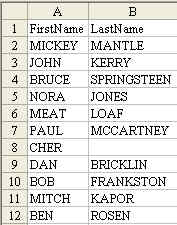
Today, Sajjad from Dubai wrote with a question. He has a database with first name in Column A and Last name in column B. How can he merge First Name and Last Name into a single column?

This is one of those questions that you can never find in Excel help, because no one thinks to search for the word "Concatenation". Heck, I don't think any normal person ever uses the word concatenate. If you don't know to search for Concatenate, then you will never learn that the concatenation operator is an ampersand. Start with a basic formula of
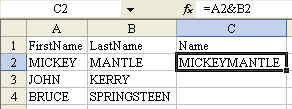
  =A2&B2 This will give you the result shown in C2 below:

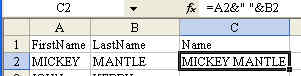
This is a good start. However, we really should concatenate first name, a space, and last name. Try this formula:

  =A2&" "&B2

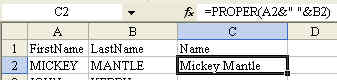
Then, the question is: do you want to scream MICKEY MANTLE, or would you rather say Mickey Mantle? If you want to change the name to proper case, use the =PROPER() function.
  =PROPER(A2&" "&B2) [Note: see my comment to this message.]

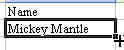
Next, you want to copy the formula down to all of the cells in the column. A shortcut method for doing this is to double-click the fill handle while cell C2 is selected. The fill handle is the darker square dot in the lower right corner of the cell pointer. The dot looks like this:

When your mouse pointer is near the dot, the mouse pointer changes to a cross like this.
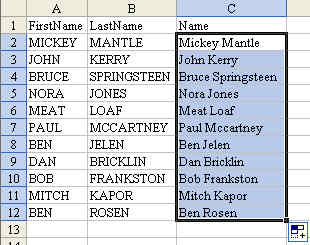
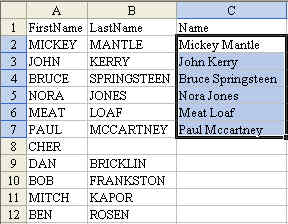
Double click and the formula will be copied down to all of the cells in the range.

Note: Excel uses the column to the left when figuring out how far to copy cells after the double click. If you happened to have a blank cell in B8, this trick would stop at row 7. Leave cialis tadalafil 5mg it to Cher to cause a problem.

If this is the case, you might want to grab the fill handle and drag down to all of the rows in order to copy the formula. Note 2: The Proper function is excellent, but it does not properly capitalize last names like McCartney (See cell C7). You will have to manually go through and capitalize the C after the Mc. It would also have a problem with VanHalen. Is this a pain? Yes – but it is easier to fix a few cells than to retype everything in proper case.

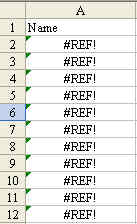
Converting Formulas to Values Now that you have Firstname Lastname in column C, you might be tempted to delete columns A & B. You can't do this yet. If you would delete columns A & B, all of the formulas in column C would change to the #REF! error. This error is saying, "Hey – you told me the value in this column should be from A2 & B2, but you deleted those cells so I don't know what to put here!".

The solution is to change the formulas to values before you delete columns A & B. Follow these steps:

  • Highlight the range of cells in column C
  • Copy those cells to the clipboard using your favorite method (The 4 methods to choose from: Ctrl+c, or Edit – Copy from the menu, or the clipboard icon on the toolbar, or right-click and choose copy).
  • Without unselecting the cells, from the menu, choose Edit > Paste Special. From the Paste Special dialog box, choose Values and then OK. This step will paste the current value of each cell in the range back into the cell. Rather than having a formula, you will now have a static value. It is safe to delete columns A & B.

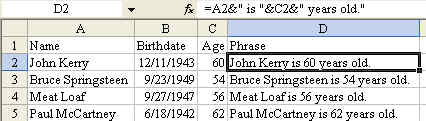
Joining a cell containing text to a cell containing a number In general, this will work out fairly well. In the image below, I've used the formula to build a phrase containing a name in column A with an age in column C.

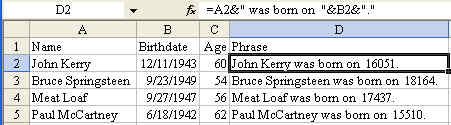
The trick is when the number is displayed in one format and you want it to be used in another format. Dates are a classic example of this. The date of December 11 1943 is actually stored as a number of days since January 1 1900. If I try to join the text in column A with the date in column B, I get a silly looking result

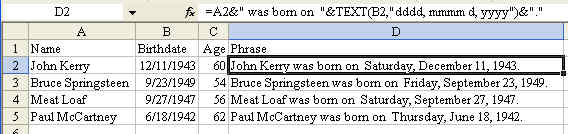
The solution is to use the =TEXT() function. The text function requires two arguments. The first argument is a cell containing a number. The second argument is a custom number format that indicates how the number is to be displayed. The following formula will produce a nicely formatted result.

There are a lot of cool techniques that were covered in this tip.

  • A formula to join 2 columns of text using the ampersand as a concatenation operator
  • How to join a cell to a text value
  • How to use the PROPER function to change names to proper case
  • Why you get a #REF! error
  • How to use Paste Special Values to convert formulas to values.
  • Joining a cell containing text to a cell containing a number
  • Using the TEXT function to control the display of a date in a formula.

This tip was originally published on September 12, 2004. The permanent URL for this page is http://www.mrexcel.com/tip074.shtml.

Permalink • Print • 1 Comment

December 20, 2007

Our Newest Christmas Stationery Collection

"Christmas Favorites"

Chistmas Favorites - Cloudeight StationeryWe started making email stationery in 1999. It sure doesn't seem like eight years have passed! Since that time, thanks to you, Cloudeight Stationery has become the number one free email stationery site on the Web! And it's all thanks to you!

We thought it would be fun to cialis tablets for sale mix a few of our favorites from those very early Christmas stationery collections with some brand new ones. So, it is with a little nostalgia that we look back on those early days with you – as we mixed the old and the new together in our latest collection of Christmas stationery we call Christmas Favorites.

Christmas Favorites is our 20th Christmas stationery collection. We invite all of you to come preview and download stationery from "Christmas Favorites" our brand new, Christmas stationery collection! Merry Christmas everyone!

You're all invited to read our latest Christmas essay entitled "The Magic Of Christmas". We think you'll all enjoy its message.

Permalink • Print • Comment

December 19, 2007

Remove tell-tale metadata from Microsoft apps

December 17th, 2007

Posted by Robin Harris

When you send a Word document to a client or a co-worker, you are also sending metadata – info about the document – as well. You can easily include embarrassing comments, hidden text or info helpful to hackers. Here’s how to get rid of it.

Start with this Microsoft support document
Titled How to minimize metadata in Office documents, the document covers the following Office apps:

Permalink • Print • 1 Comment

The Ultimate Word Keyboard Shortcut List

Quite often, I receive e-mails requesting complete lists for keyboard shortcuts.

Unfortunately, I never really have one. Most of the lists I put in the newsletter are ones I compile from a variety of references.

And, to be quite honest, I wasn't too worried about a "whole" list, because most people I've worked with have difficulty learning that much material all at one time.

But, I've stumbled upon a way to get MS Word to make a full list, so for those of you who really want the "complete" list of keyboard shortcuts, this one is for you!

In all versions of Word, you'll need to begin with an open blank document.

For those of you with older versions of Word, you need to go to the Tools menu, Macro submenu, Macro choice (or Alt + F8).

If you're running Word 2007, you need to click the Macro button on the Developer ribbon. (If you don't see the Developer ribbon, go to the Office button, Word Options button and in the Popular section, check the "Show Developer tab in the Ribbon" and click OK).

No matter which version you're running, we're all looking to choose Word commands under the "Macros in:" field in the Macros dialogue box.

From the list that appears in the Macro name: field, you need to select ListCommands.

Next, cialis sale click Run.

When the List Commands window opens, choose either "Current menu or keyboard settings" or "All Word commands." (I've made both of these lists. The "All Word commands" choice produced a much longer list that contained all the commands, even if there wasn't a keyboard shortcut to list. A good portion of the 42 pages had no shortcuts for me to use. As a result, I whole heartedly recommend you choose the first option).

When you've made your choice, click OK.

You will be returned to your document and Word will create a table of your shortcuts.

The first column is the command name.

The second column (titled "Modifiers") is the combination of Alt, Ctrl and Shift that you will need to use with the key listed in the third column.

The last column is the menu where the command can be located in Word.

That's it!

You can save and/or print the document as a reference tool.

One last thought: for those of you who may be overwhelmed by such a long list, never fear. I'm positive you'll still find smaller, more manageable lists included in this newsletter from time to time!

Permalink • Print • Comment
« Previous PageNext Page »
Made with WordPress and Semiologic • Sky Gold skin by Denis de Bernardy